How to use Draft Harmony
Creating an outline only requires a few steps and serves as a great starting point for a writing task (assignment, job, project, etc.). You'll need to sign up here for access to the writing task tool, then follow the following steps.
1. Go to "My tasks" from the upper right-hand of the screen.

2. Click on the "Create new task" button.
3. Add info to your new writing task
Here we'll fill out a few basic text fields before we save our new task and create an outline from the tool.
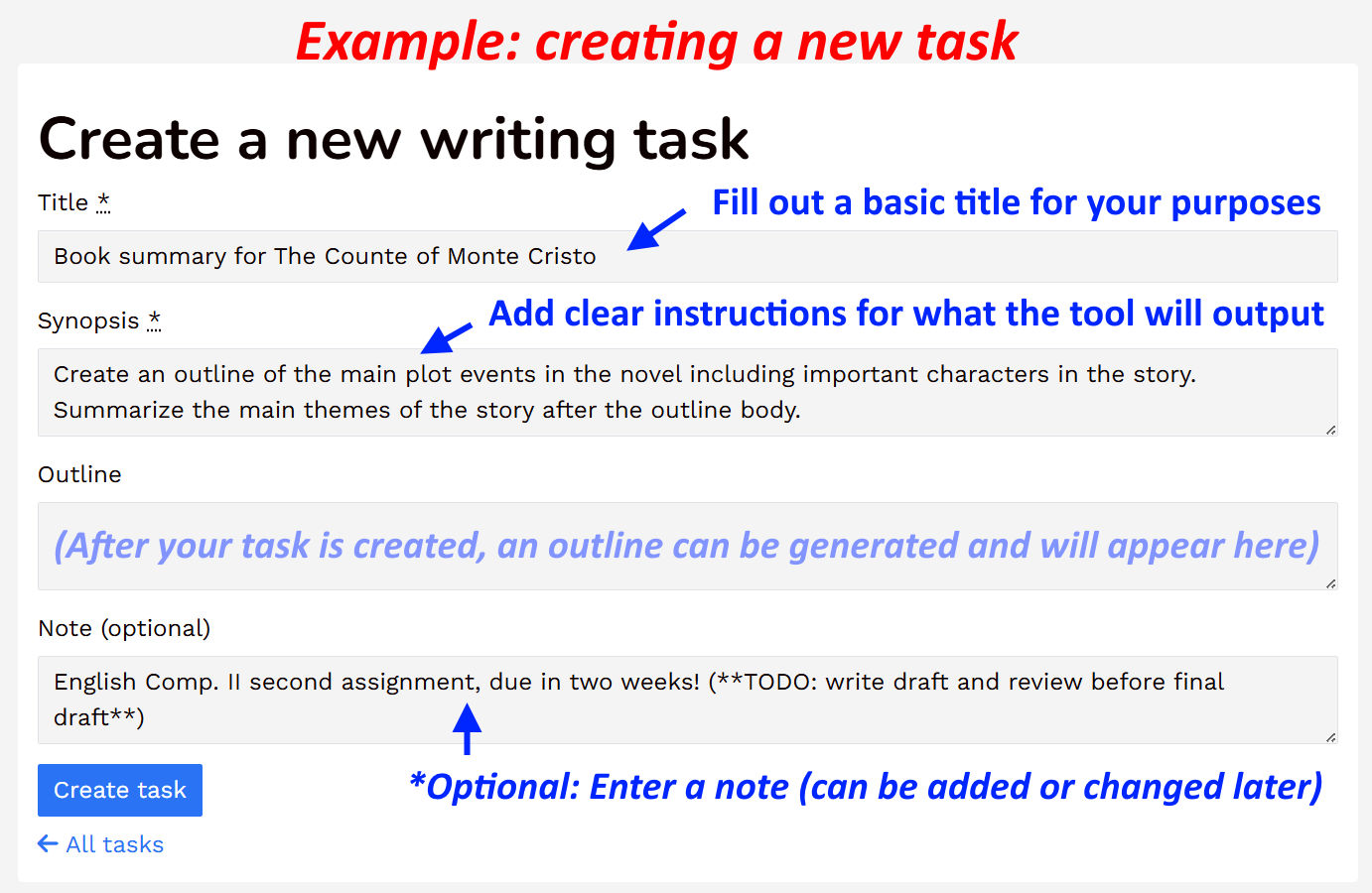
Enter a title to help you keep track of the writing task. You can also add a work/project note if you like (optional) or wait and add some later.
Synopsis:
The synopsis is a simple summary of what the tool will create for you. This is generally but not always- an outline which can be used for things like book summaries, English composition assignments, and even presentation slides. In the Synopsis field, enter a specific instruction describing what you need to be provided.
Some good examples are:
- "Create a basic outline for the novel. Each outline section should cover main events in the book and include important characters. Summarize the main themes behind the story."
- "Create an outline providing main advantages and benefits of a traditional nuclear family. When citing statistics, provide the sources in a separate section with a URL link for each source, where available. Include a summary at the end."
Things to avoid with a synopsis:
- Avoid works like "I", "we", "us", or any unnecessary descriptive words. Focus on being clear & specific.
- You can describe the output general format, but don't specify the text format. Example: "an outline" or "a 3 paragraph summary" is ok. "HTML format" is not. (The tool uses a pre-defined format to display your results properly.)
- Keep it simple - don't write paragraphs here! You should, in nearly all cases, be able to get good results using only a few concise sentences.
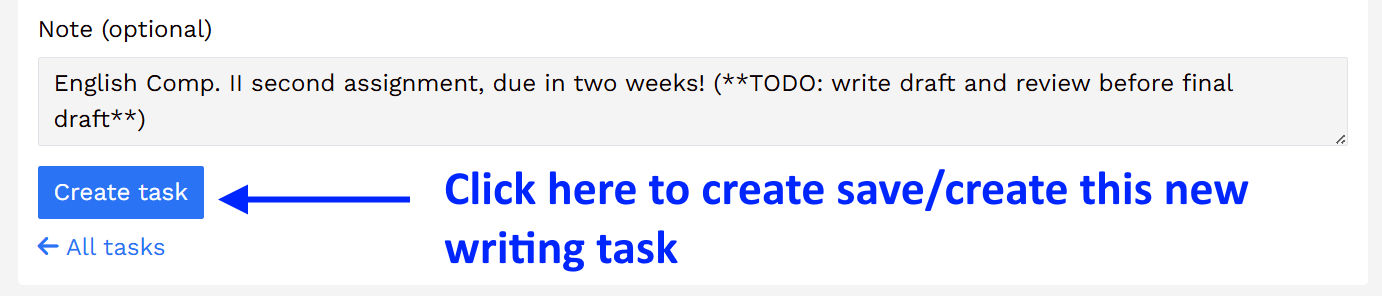
4. Once you're done, click "Create task"!
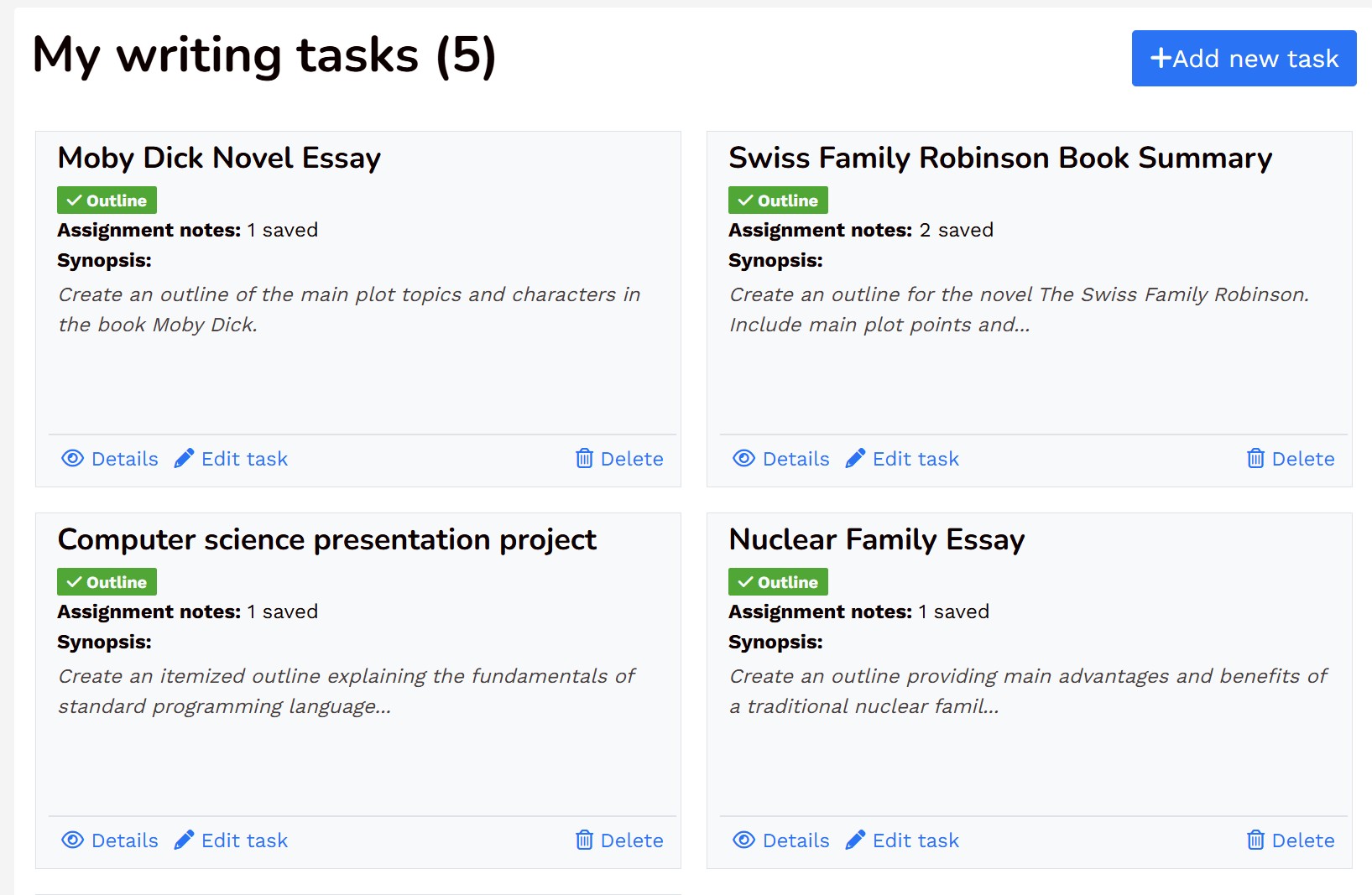
Your new task will be saved and appear under the "My tasks" page. From here, you can:
- View its details
- Edit the task including the outline box (if generated) or notes.
- Delete a task permanently.
5. Generating an outline
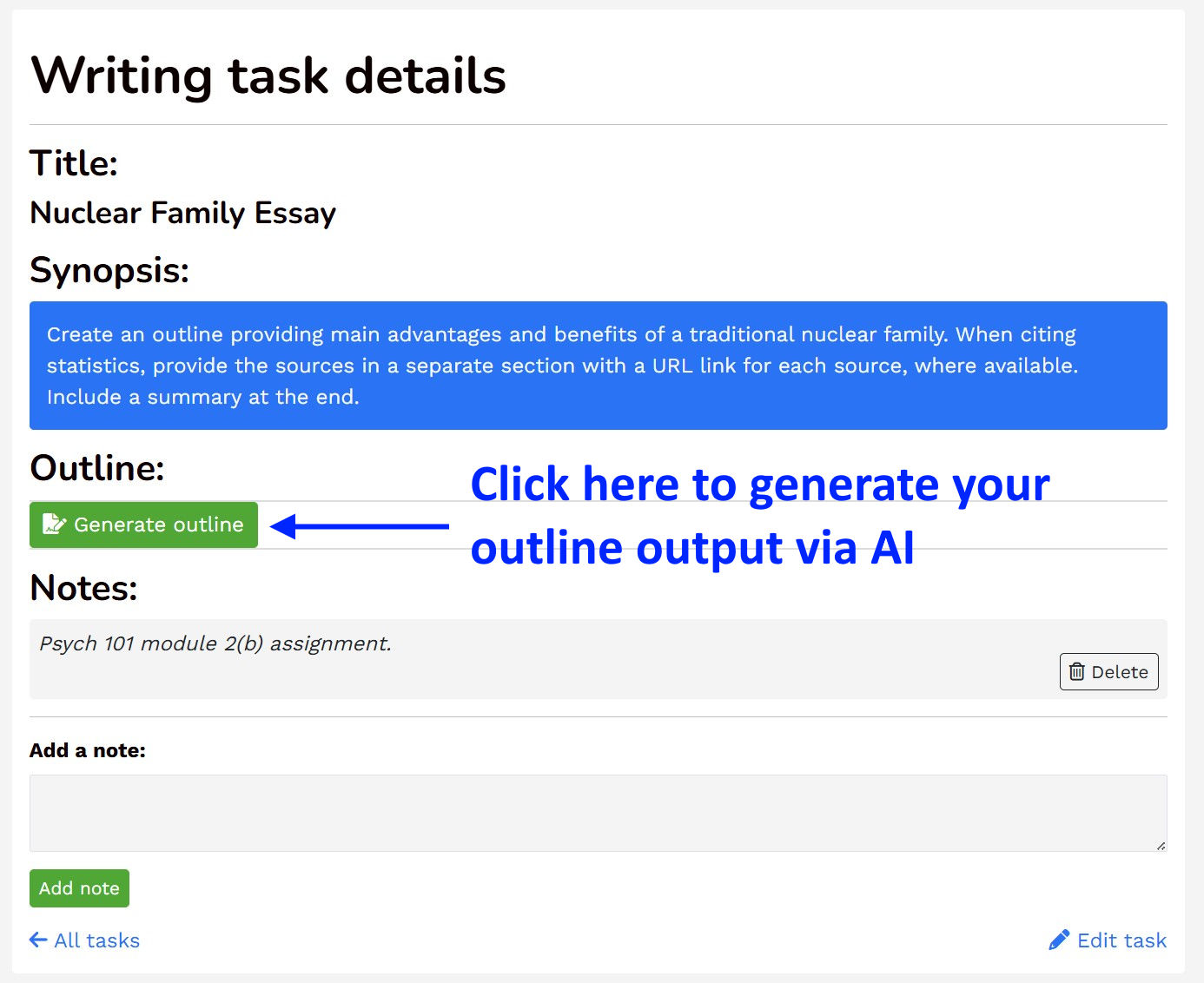
Here comes the fun part! To complete a writing task's output, click on the desired task's "View details" link. If there's no outline present already, the green "Generate outline" button will be visible.- Click the button and in a few moments the A.I. agent will return the output based on your synopsis instructions.
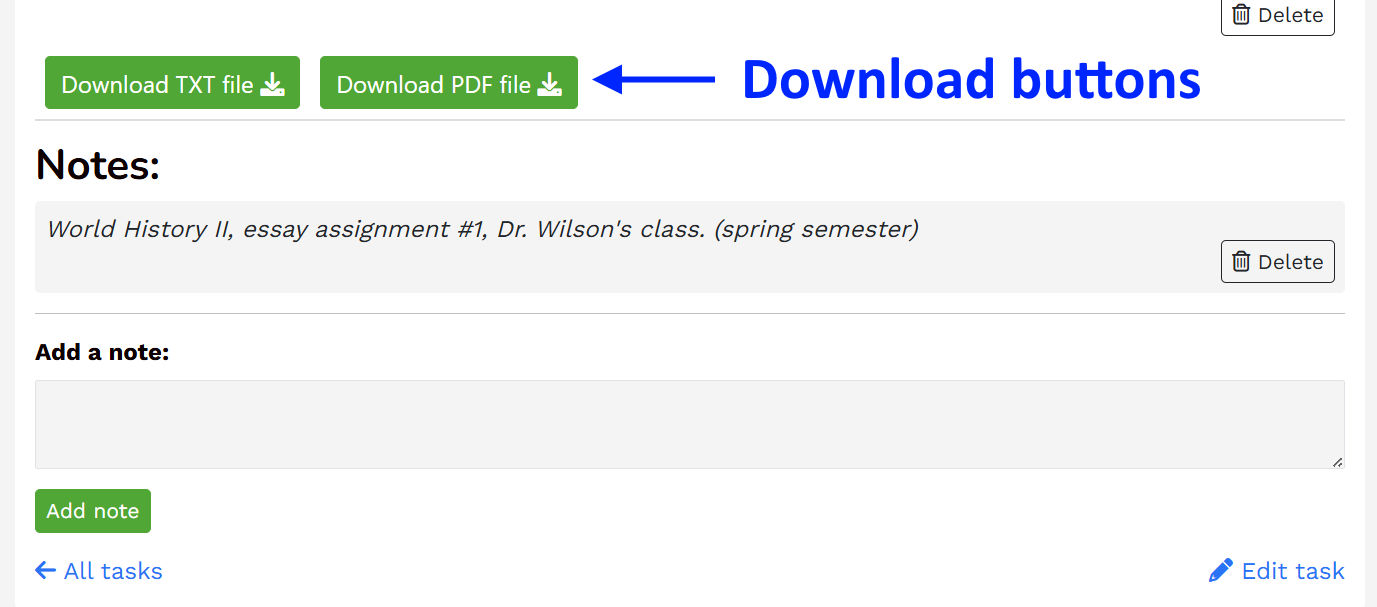
After an outline has been created, download buttons will appear at the bottom of the Outline box. Click your choice to download the contents as a plain text file (.txt) or Adobe PDF format (.pdf).
6. Making changes
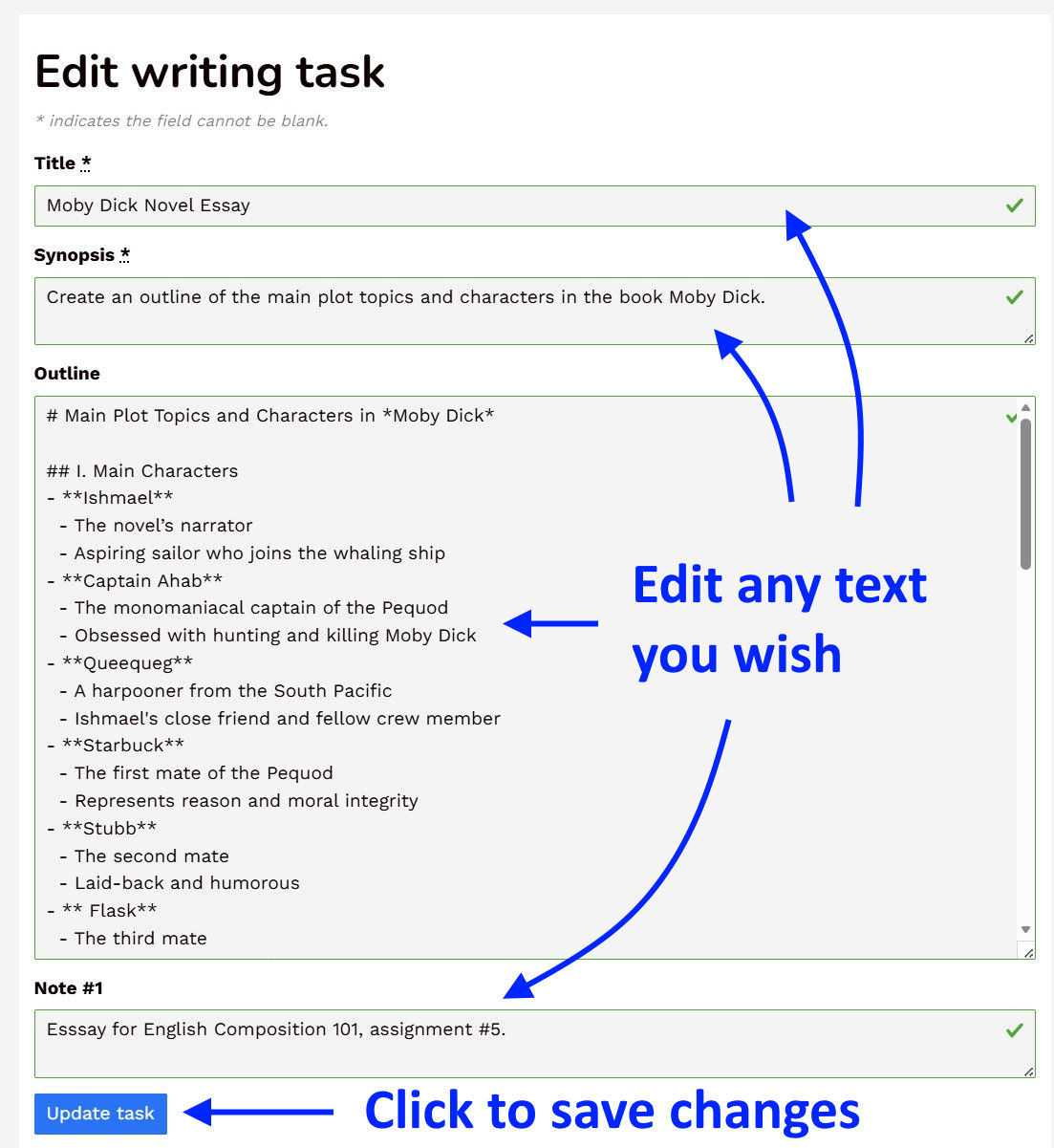
- At any time you can make changes to any of the text fields - including outline text - by click on "Edit task" under the My Task page for any available.
- Additionally, if you're so inclined, you can delete an outline and re-run the generate tool. This is especially helpful if you've made changes to your synopsis directives or would like to try a different output.
 « Home